Combine several blocks
Build one injectable from several blocks, give each block its own values, and arrange the blocks with your own HTML.
A Blocks injectable is built from a stack of blocks. Use it when one place on your storefront needs several blocks together, or when an injectable needs its own values for a block's variables.
The example on this page is a strip for the home page of an outdoor clothing shop. It shows the Free Shipping Promise block next to the Trust Badges Row block.
Before you start
You need the blocks you want to combine. You can also create one from inside the stack. See Create a block.
Build the stack
- Create an injectable and choose the content type Blocks. See Create an injectable.
- Under Stack (top to bottom), press Add block and choose a block. Repeat for each block.
- Use the arrows on a row to move a block up or down.
- Save the injectable.
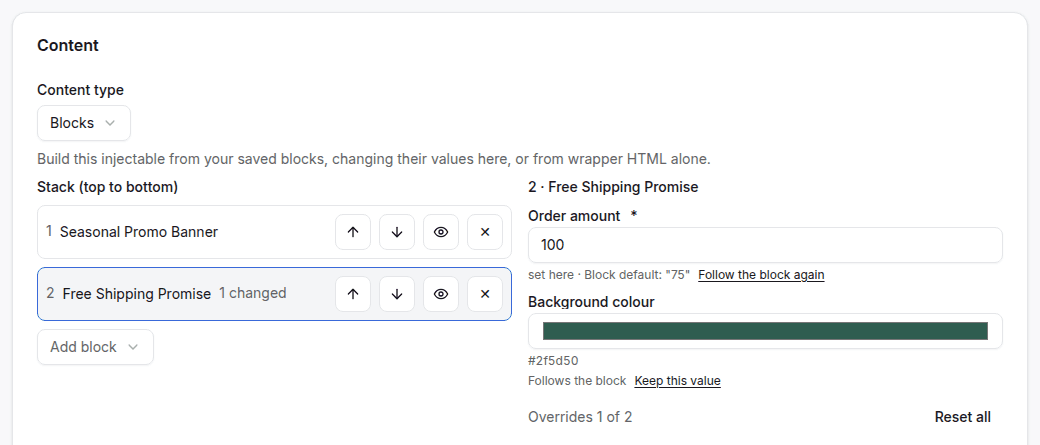
The blocks show on the page one after another, in the order of the stack. The preview next to the stack shows the result as you work.
Create a block makes a new block without leaving the page. You can add the same block more than once. A stack holds up to 20 blocks, and a block you have hidden in the stack still counts.
Give a block its own values
Each block in the stack lists its variables. For every variable you choose one of two things:
| The variable | The injectable uses |
|---|---|
| Follows the block | The block's default. It changes when the block's default changes. |
| Is set here | The value you enter. It stays when the block changes. |
The row of a block in the stack shows how many values you set here, such as 1 changed. Under the values, Overrides 1 of 2 says the same, and Reset all makes every variable of that block follow the block again.
A variable that must have a value, and has none, says needs a value · The block has no default for this. Enter a value before you save.
Arrange the blocks with your own HTML
Leave Wrapper HTML & CSS empty and the blocks show one under another. To put them side by side, or to put your own content around them, write the HTML yourself and mark where each block goes.
- Open Wrapper HTML & CSS.
- Write your HTML.
- Put the cursor where a block belongs and press Insert block on that block's row.
Insert block writes a marker such as {{> free_shipping }}. The name in the marker is the block's name in this stack. You can change it on the block's row.
<div class="strip">
  <div class="strip-part">{{> free_shipping }}</div>
  <div class="strip-part">{{> trust_badges }}</div>
</div>
Once your HTML places blocks, the stack is headed Stack (in page order) and follows the order of the markers.
| In the stack you see | What it means |
|---|---|
| Not placed yet | The block is in the stack but has no marker in your HTML. It does not show until you insert it. |
| Placed N times | The block has several markers. Move the markers in the HTML to reorder it. |
| Archived | The block was archived. It is left out of the page. |
| Unavailable | The block no longer exists. It is left out of the page. |
A marker starts with >
Write {{> name }} to place a block. Without the >, as {{ name }}, StoreSpan reads it as a
value and never places the block.
Style your HTML
CSS you write in the wrapper applies to this injectable only. It cannot change the rest of your storefront page. Each block keeps its own CSS as well.
@keyframes, @font-face and @page rules stay as you wrote them. StoreSpan removes @import.
Add your own values
Template variables holds values of the injectable's own, as a name and a value. Write {{name}} in your wrapper HTML to use one. You can also insert visitor details, such as the shopper's country, from Insert variable in the toolbar. Conditions and calculations work here as they do in a block. See Show content only in some cases.
Variables do not work in CSS.
Visitor details are empty on some delivery routes
Your own values are filled in wherever the injectable shows. Visitor details are filled in only when the injectable reaches the page through the loader or a BigCommerce widget. With Static Page and Server-rendered delivery, StoreSpan builds the content before any shopper arrives, so visitor details are empty there. See How injectables reach your store.
Publish HTML with no block
A Blocks injectable does not need a block. With an empty stack, the wrapper HTML alone is the content. Use this to publish a small piece of HTML with a few values you can change, without creating a block first.
Style the whole page
External CSS at the bottom applies to your whole storefront page, not only to this injectable. It can restyle your theme's header, your footer or your checkout.
External CSS reaches beyond the injectable
Put CSS meant for this injectable in the wrapper CSS, which cannot reach the rest of the page. Use External CSS only when you mean to change the page. The preview holds only this injectable, so you see the effect of External CSS on your storefront, not in the dashboard.
Variables do not work in External CSS. See Custom HTML & CSS for what StoreSpan removes from it.
When a block changes later
Variables that follow the block take the block's new default. Variables set here keep their value. The stack points out what changed and offers a choice:
| The stack says | You can press |
|---|---|
| Follows the block · changed, with the date and the old value | Keep this value, to set the old value here. |
| set here · Block default is now, with the new value | Use the new default. |
| A variable the block no longer has | Remove. |
What saving checks
| What StoreSpan finds | What happens |
|---|---|
A marker that is not written as {{> name }}, or that names no block in the stack | The save is refused. The message quotes the marker. |
| Your HTML places none of the blocks in the stack | Saved, with a caution. Nothing shows until you place a block. |
| A block in the stack that your HTML never places | Saved, with a caution. That block does not show. |
| A placed block that is archived or no longer exists | Saved, with a caution. That block does not show. |
Limits
| Limit | Value |
|---|---|
| Blocks in a stack, hidden ones included | 20 |
The wrapper, External CSS and template variables have the same limits as in any injectable. A stack delivered as a BigCommerce widget must also fit the size limit for widgets, and the editor warns you before you reach it. See Limits.
Use a block in an injectable
Make a block the content of an injectable, see every injectable that uses a block, and bring their values back in line with the block.
How a block is styled
Which blocks take your store's design, how to match your store design to your storefront, why an injectable that uses a block has no design choice, and how to see a block before it goes live.