Create a kit
Choose the products that go together, set the discount and the wording, pick a look, and publish the kit to your storefront.
This page takes you from an empty form to a kit that is live on your storefront. It follows a new kit, Summer Essentials Bundle: a board short offered together with a tee, a water bottle and a cap, at 12% off.
Before you start
- The products must already be in your BigCommerce catalogue, each with a price.
- Read Before you start in the overview. A kit shows on your storefront only once kits are switched on for your store.
Create the kit
- Open Storefront › Kits and press New kit.
- Fill in the four sections of the form, described below. A preview on the right shows the kit as you work.
- Press Create draft.
The kit is saved as a draft. Nothing reaches your storefront until you publish it.
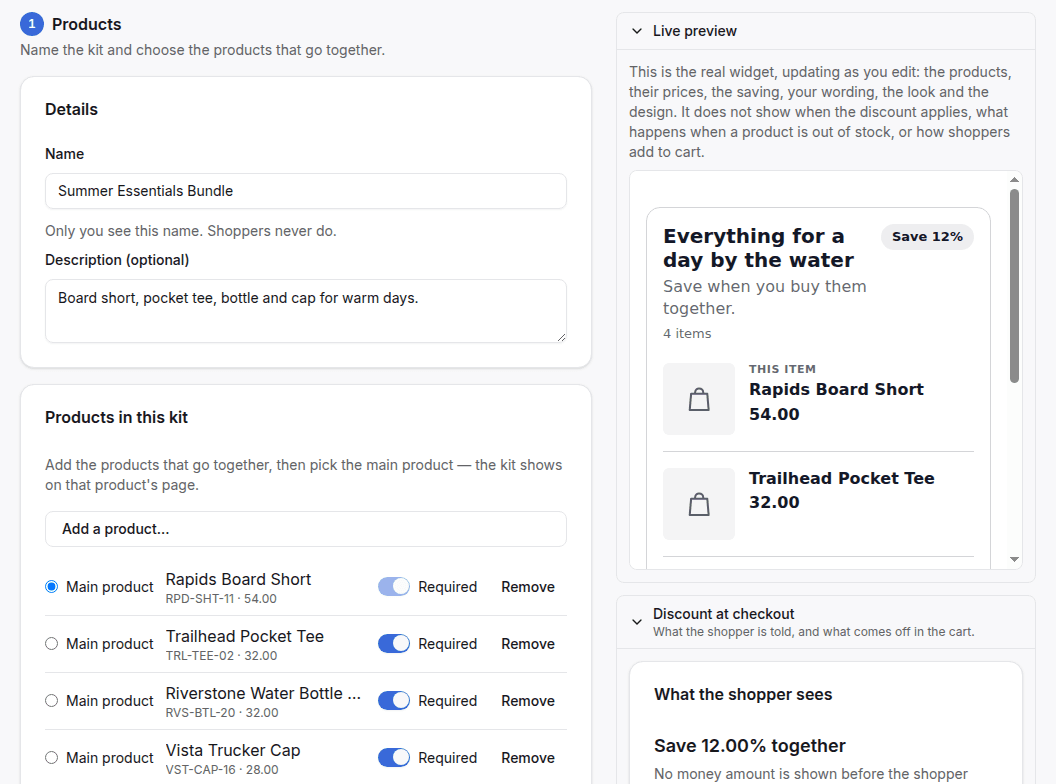
1. Products
| Field | What to enter |
|---|---|
| Name | A name for your team, such as Summer Essentials Bundle. Shoppers never see it. |
| Description (optional) | A note for your team. |
| Products in this kit | Add each product that belongs to the kit. |
| Main product | Pick the product whose page shows the kit. In the example, the Rapids Board Short. |
| Required | Leave on for a product the shopper must take. Turn off to let the shopper leave that product out. |
A kit holds from 2 to 24 products, the main product included. Each product can be in a kit once. The main product is always required.
2. Offer
| Field | What to choose |
|---|---|
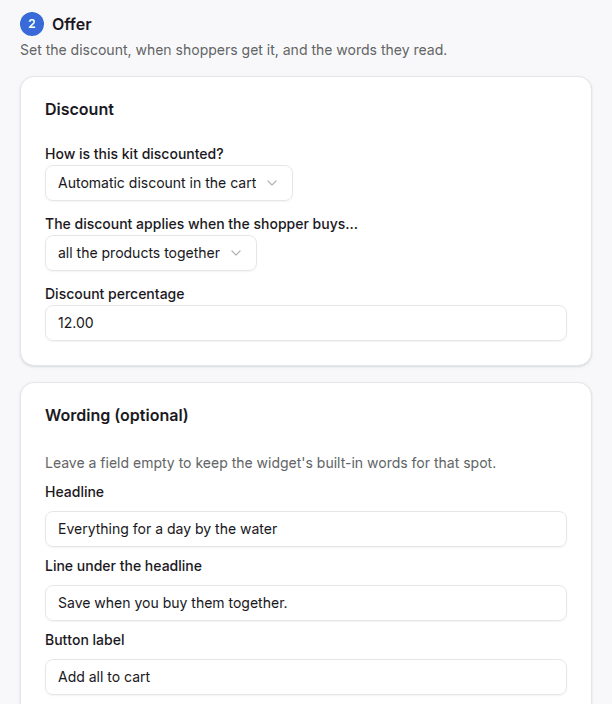
| How is this kit discounted? | Automatic discount in the cart, Coupon, only for shoppers who use the kit, or No discount — just show the products together. |
| The discount applies when the shopper buys… | all the products together, or any one of the products. |
| Discount percentage | A number from 0 to 100, with up to two decimals, such as 12. |
| Headline, Line under the headline, Button label | The words shoppers read. Leave a field empty to keep the kit's own words for that spot. Each takes up to 200 characters. |
A discount is a percentage. See Kit discounts for how it works and who gets it.
Any one of the products is a sale on each product
With any one of the products, every cart that holds even one of these products gets the discount. That is a sale on each of them across your whole store. Choose all the products together unless you mean that.
If you choose all the products together, do not let shoppers leave products out. Under Look, open Fine-tune and set Can shoppers leave products out? to Always add all products together. A shopper who leaves a product out would not get the discount the kit promised, so StoreSpan refuses to save the other choice.
With Coupon, only for shoppers who use the kit, only a shopper who adds the kit with its button gets the discount. Their cart gets a one-time code on its own. Other shoppers pay full price. A coupon kit has one more field:
| Field | What to enter |
|---|---|
| Codes kept ready | How many unused one-time codes StoreSpan keeps ready for the kit. The starting value is 25, up to 250. Raise it for a busy kit that hands out codes faster than StoreSpan tops them up. |
StoreSpan makes fresh codes in the background and tops them up every few minutes. The kit's page shows how many are ready. See Automatic or coupon.
3. Look
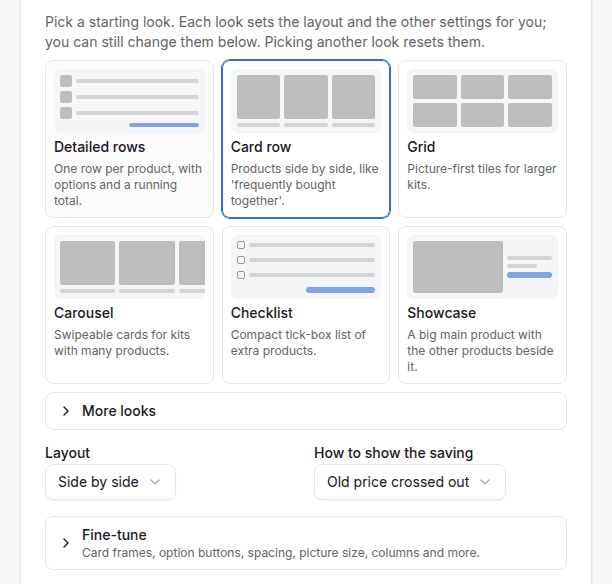
Pick one of the ten looks, such as Card row, Detailed rows or Grid. A look sets the layout and every other setting at once. You can then change single settings:
| Setting | What it changes |
|---|---|
| Layout | How the products are arranged, for example side by side or in a grid. |
| How to show the saving | As a banner, a small badge, a crossed-out old price, a corner ribbon, or not at all. |
| Fine-tune | Card frames, option buttons, spacing, picture size, columns, and whether product choices show straight away or open when a shopper asks. |
| Design (optional) | The kit's colours, corners and spacing. See Design. |
| How shoppers add to cart | With the kit's own button, or with your store's own add-to-cart button. |
Picking another look resets the settings under it.
4. Where it shows
This section is optional. Leave it as it is to show the kit to every shopper, just below the add-to-cart button of the main product. See Who sees a kit, and where.
Publish the kit
- Open the kit from the Kits page.
- In the Status panel, press Publish.
- Read the dialog, then press Publish store-wide.
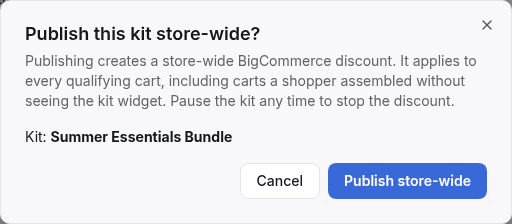
An automatic discount is for your whole store
With an automatic kit, the discount applies to every cart that holds the right products, and can stop your other promotions on those carts. A coupon kit is different: only shoppers who use the kit get the discount. See Who gets the discount.
To stop the discount, pause the kit while the Kit discounts switch is running. The discount usually keeps applying for about five minutes after you pause. See Pause, archive or change a kit.
After you publish, the page says The kit is now live. We're setting up its discount now. The discount takes about five minutes to reach BigCommerce. Until then shoppers see the kit without a saving.
A kit with no discount asks Publish this kit without a discount? instead. Press Publish kit.
A coupon kit asks Publish with a coupon instead. The dialog says it creates a coupon promotion on BigCommerce and a batch of ready one-time codes, and that switching the discount type later replaces the promotion and cancels codes already handed out. Press Publish.
A coupon kit needs two more permissions
A coupon kit needs two permissions for your store, on top of the marketing permission every kit needs.
| Permission | What it lets StoreSpan do |
|---|---|
| Checkouts | Put the one-time code on a shopper's cart for them, so the shopper never types it. |
| Checkout Content | Relabel the code Kit discount on the cart page, the checkout page and the confirmation page. |
If either is missing, the Kits page shows a card that asks you to reconnect your BigCommerce store. Use the link in the card.
- Without Checkouts, a coupon kit will not publish.
- Without Checkout Content, the kit still works, but the code shows at checkout instead of Kit discount until you reconnect.
Switching a kit between automatic and coupon later replaces its promotion on BigCommerce and cancels any codes already handed out.
Change a kit that is live
StoreSpan locks the products and the discount of a live kit, because a discount on BigCommerce depends on them. You can still change its name and description.
To change the products or the discount:
- Open the kit and press Pause.
- Make your changes and press Save changes.
- Press Publish again.
Pausing removes the kit's discount from BigCommerce within about five minutes. Publishing creates it again, which takes about five minutes too.
Limits
| Limit | Value |
|---|---|
| Products in a kit | 2 to 24 |
| Discount | 0% to 100%, two decimals |
| Name | 200 characters |
| Description | 2,000 characters |
| Headline, line under it, button label | 200 characters each |
| Columns in the Grid layout | 1 to 6 |
| Codes kept ready (coupon kit) | 25 to 250 |
If the kit will not save
The form shows This kit cannot be saved yet above a list of what to fix.
| Message | What to do |
|---|---|
| A kit name is required. | Enter a name. |
| A kit needs at least 2 products, including the main product. | Add another product. |
| A kit can hold at most 24 products. | Remove products, or split the kit in two. |
| A kit lists each product once. Remove the repeated product. | Remove the product that appears twice. |
| Choose the main product — the product whose page shows the kit. | Pick a main product. |
| The main product must be one of the products in the kit. Add it to the kit, or pick a main product from the list. | Add the main product to the kit, or pick another main product. |
| Enter the kit discount as a percentage like "15" or "15.00". | Enter a number, with no percent sign. |
| A kit discount percentage must be between 0 and 100. | Enter a number in that range. |
If the kit will not publish, see When a kit does not show.