Who sees a kit, and where
Show a kit only to some shoppers, move it to another spot on the product page, and change its colours, corners and spacing.
A new kit shows to every shopper, just below the add-to-cart button of its main product, in your store's design. This page covers the three things you can change about that. All three are optional.
Show a kit to some shoppers only
- Open the kit and go to the section Where it shows.
- Under Who sees the kit, add a rule, such as a country, a device or a segment.
- Save the kit.
With no rule, every shopper sees the kit. The rules are the same as for injectables. See Targeting for each kind of rule.
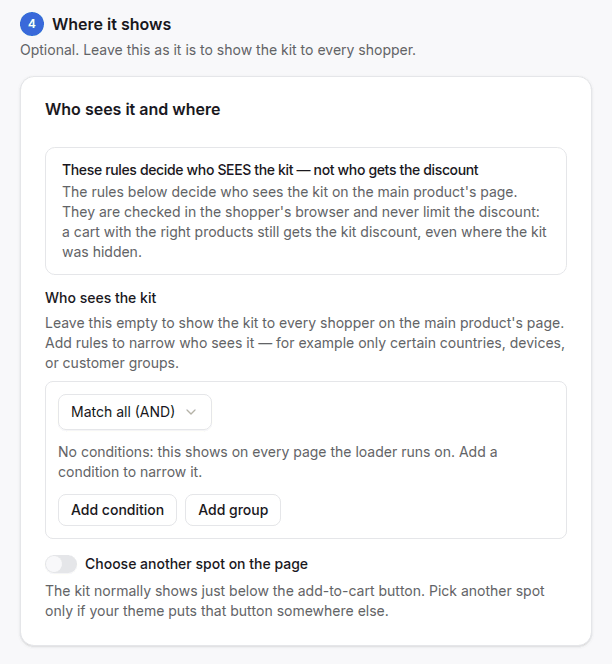
A rule hides the kit. It does not limit the discount.
The form says it plainly: These rules decide who SEES the kit — not who gets the discount. A shopper the kit is hidden from still gets the discount if their cart holds the right products. See Who gets the discount.
So a rule is right for choosing where to promote a kit, such as showing it to shoppers in one country. For an automatic kit, it is not a way to give a discount to some customers only.
This is true for an automatic kit. A coupon kit is different: its discount reaches only shoppers who added the kit with its button, so it already goes to kit users and no one else. A rule under Where it shows still decides only who sees the kit, not who gets the discount.
Move a kit on the page
A kit shows just below the add-to-cart button. Move it only if your theme puts that button somewhere unusual.
- In Where it shows, turn on Choose another spot on the page.
- Enter where the kit goes and whether it comes before or after that spot.
- Save the kit, then check the product page on your storefront.
The spot is a CSS selector, which names a part of your theme's page. Ask the person who looks after your theme if you are unsure. StoreSpan checks that you wrote the selector correctly. It cannot check that your theme has that part, and a kit whose spot is missing from the page does not show.
Change how a kit looks
The Design (optional) card in the Look section has three choices:
| Choice | The kit uses |
|---|---|
| Use the store design | The colours, corners and spacing set under Storefront › Design. This is the starting choice. |
| No styling (plain defaults) | The kit's own plain look. |
| Customise for just this one | The store design, with the values you change for this kit only. |
Use the store design unless a kit needs to stand out. A change to the store design then reaches all your kits at once.
For the layout of a kit, such as a grid or a row of cards, see Look.