What shoppers see
How a kit looks on your product page, what a shopper can do with it, how prices and savings are shown, and what happens when a product is out of stock.
A kit appears on the page of its main product, just below the add-to-cart button. This page describes it from the shopper's side, so you know what to expect when you open your storefront.
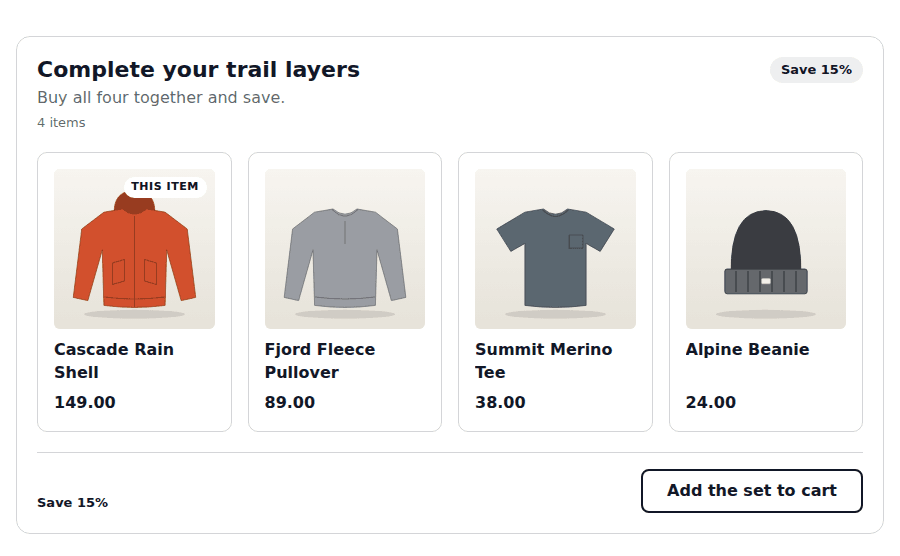
The picture shows the example kit, Trail-Ready Layers, in the look Card row. Its headline and button label are the shop's own words. A product sold in several sizes or colours also shows its choices on its card — either on show, or behind a small button the shopper opens (see Product choices below). The preview in the picture leaves them out.
The parts of a kit
| Part | What the shopper sees |
|---|---|
| Heading | Your headline, or Frequently bought together if you left the headline empty. |
| Number of products | Such as 4 items. |
| Saving | Such as Save 15%. Shown only once the discount is live on BigCommerce. |
| Product cards | One card for each product, the main product first, marked This item. |
| Options | Size, colour and other choices, for each product that has them. In the compact looks — or when you set Product choices to Shown when the shopper asks — each product shows a small button that opens its choices in place instead of leaving them on show. |
| Button | Your button label, or Add all to cart — or Choose 2 options while a choice is still missing. |
A product the shopper must take is marked Included. A product the shopper may leave out has a tick box.
What a shopper does
- The shopper picks the options of each product, such as size M and colour Ember. When product choices are set to Shown when the shopper asks, each product shows a small button that opens its choices in place.
- While a choice is still missing, the add button reads Choose 1 option (or Choose 2 options, and so on). Pressing it does not add — it takes the shopper to the first product still missing a choice and opens its options.
- Once every product the shopper keeps has its choices, the button reads Add all to cart (unless you chose your own label), and pressing it adds the whole kit.
- A confirmation, Added to your cart, replaces the kit. It shows the discount BigCommerce gave.
If a product the shopper keeps is out of stock with nothing left to choose, the button stays greyed out until that is resolved.
When two products share an option, such as Size, a choice on one product carries to the others. A shopper who picks M for the jacket gets M for the fleece and the tee, and can still change each one.
Prices and savings
The kit shows each product's price from your BigCommerce catalogue.
| The kit shows | When |
|---|---|
| The saving as a percentage | The discount is live on BigCommerce. |
| No saving | The discount is not live yet, or the kit has no discount. |
| A price as — | StoreSpan has no price for that product yet. It appears after the next product update from BigCommerce. |
StoreSpan reads your prices from BigCommerce about every hour. If it has not been able to read them for three hours, the kit stops showing amounts in money and keeps showing the percentage. That way a shopper never sees an amount based on an old price.
The kit shows its prices, the running total and the saving in the currency the shopper is browsing in, as long as that currency is turned on in BigCommerce — using your store's own BigCommerce rates, or a price list that prices that currency. If the shopper's currency is not one you have turned on, the kit shows your store's default currency instead. A set amount off (rather than a percentage) is shown only to shoppers browsing in the currency it was set in. See the Currencies settings page for which currencies your store shows prices in.
You choose how to show the saving with How to show the saving in the kit form. The choices are a banner, a small badge, a crossed-out old price or a corner ribbon.
When a product is out of stock
You choose what happens with When a product is out of stock, under Fine-tune in the kit form.
| Setting | What the shopper sees |
|---|---|
| Hide the whole kit | No kit, when a product the discount needs is out of stock. This is the starting setting. The kit can show for a moment while StoreSpan checks stock; when it goes away, the page below it moves up. It is not taken away from a shopper who is already using it, and it always stays for a shopper who has its products in the cart. |
| Show the products still in stock | The kit, with the product that is out of stock greyed out and left out. If that product is one the shopper cannot leave out, the kit cannot be added until it is back in stock. |
Inside a kit that is shown:
- An option that is out of stock stays in the list, marked — out of stock.
- An option that does not go with the shopper's other choices is marked — not available with your other choices.
- A product with no option left in stock is marked Out of stock and cannot be ticked.
When the kit uses a coupon
If the kit's discount is a coupon, the shopper still presses one button and the products land in the cart. StoreSpan then puts the discount on the cart for them, with nothing to type, and the cart shows a Kit discount line.
| The shopper sees | When |
|---|---|
| Adding the kit discount… | While StoreSpan is putting the discount on the cart. |
| $12.00 kit discount applied. | The discount is on the cart. A Kit discount line shows in the cart. |
| Added to your cart. The kit discount could not be added this time. with a Try again button | The discount could not be added this time. Try again asks for it once more, up to three times. |
| Added to your cart. Your other coupon stays, so the kit discount was not added. with a Try again button | The cart already held another coupon and your store allows one. Remove it, then press Try again. |
| The kit discount is no longer on your cart. Add it back any time. with an Add it back button | The discount left the cart while the kit's products stayed. Add it back puts it back. |
Either way the products stay in the cart, and Undo still works.
On the cart page, StoreSpan also shows a short line naming the kit and whether its discount is on the cart, with the same Add it back button when the discount was removed. This shows for both coupon and automatic kits. See What the cart page shows.
When something goes wrong for the shopper
| The shopper sees | What happened |
|---|---|
| We couldn't add these to your cart. Please try again. | BigCommerce did not accept the products. The kit stays on the page. |
| A message such as 2 of 3 added. with the product that was not | Some products were added. The message names the one that was not, and why. |
| No kit at all | The kit could not be loaded, or a rule hides it. The rest of the page is not affected. |
A kit never shows an error page and never stops the product page from working.
Two ways to add to cart
| How shoppers add to cart | What the shopper uses |
|---|---|
| With the kit's own "add all" button | The kit's own button. This is the starting setting. |
| With your store's own add-to-cart button | Your theme's add-to-cart button. Pressing it adds the whole kit. |
The second way needs a product page with exactly one add-to-cart form. On a page with none, or with several, the kit falls back to its own button.
Kit discounts
How a kit's discount becomes a promotion on BigCommerce, who receives it, how long it takes to go live, and what happens when you pause or change a kit.
Who sees a kit, and where
Show a kit only to some shoppers, move it to another spot on the product page, and change its colours, corners and spacing.