Create a segment
Start from a template or write your own rules, choose the right condition for what you want to know, and check who matches before you save.
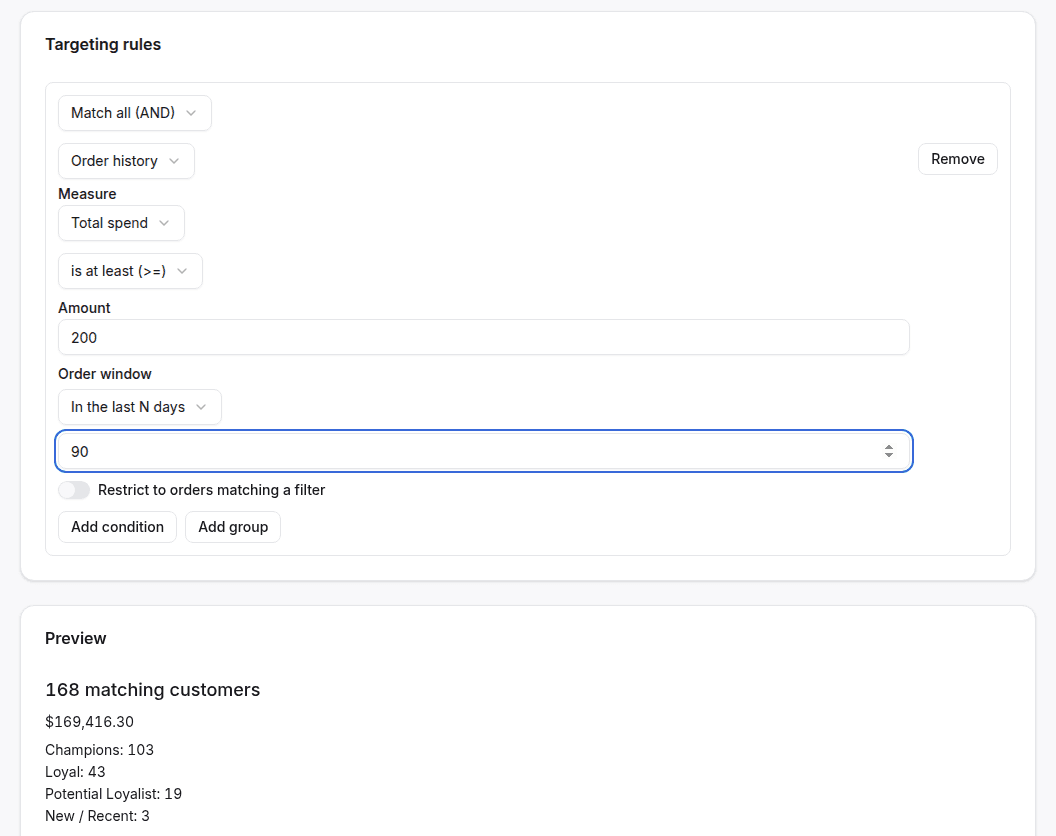
This page takes you from an empty form to a saved segment. It follows one example, Big Spenders, 90 Days: customers who spent at least $200 in the last 90 days.
Create the segment
- Open Audience › Segments and press New segment.
- Pick a template, or start from scratch.
- Enter a Name. Each segment in your store needs its own name.
- Build the rules under Targeting rules. See Build the rules.
- Check who matches under Preview.
- Press Create paused segment.
The page confirms with The paused segment was created. Preview it, then activate it. The segment does nothing until you activate it. See Put a segment to work.
Start from a template
A template fills in the name and the rules for you. You can change both.
| Template | Who it matches |
|---|---|
| Champions | Your most recent, frequent, and high-spending customers. |
| At Risk | Once-valuable customers who have not purchased in a while. |
| Can't Lose Them | High-value customers slipping toward churn. |
| Hibernating & Lost | Long-dormant customers with little recent or repeat activity. |
| New & Recent | Customers whose first order landed in the last 30 days. |
| Second-Purchase Opportunity | One-time buyers whose first order is aging. |
| VIP (Top Decile) | The top 10% by spend or by estimated lifetime value. |
| High-Value Churn Risk | Top-quartile spenders with a high estimated churn risk. |
| Lapsing Repeat Buyers | Repeat customers whose RFM tier is drifting toward inactive. |
| Overdue for a Reorder | Repeat buyers whose estimated next order date is already past due. |
| Full-Price Loyalists | Repeat customers who never buy on discount. |
| Deal Seekers | Customers who buy most of their orders on discount. |
Build the rules
A rule is made of conditions. Each condition asks one question about a customer, such as "is their total spend at least $200?"
For the example:
- Press Add condition and choose Order history.
- Choose the measure Total spend.
- Choose is at least and enter
200. - Choose the time In the last N days and enter
90.
Combine conditions
Conditions sit in a group. The group decides how they combine:
| Group | A customer matches when |
|---|---|
| Match all (AND) | every condition in the group is met |
| Match any (OR) | at least one condition in the group is met |
| Not (invert) | the condition in the group is not met |
Add group puts a group inside a group. Use it for rules such as "spent at least $200, and is either a new customer or buys at full price".
Choose a condition
About their orders
| Condition | Use it to ask |
|---|---|
| Order history | How many orders, how much spent, or when the first or last order was, over a time you choose. |
| Order recency | How many days since the first or the last order. |
| Purchase cadence | How many days usually pass between their orders. |
| Product affinity | Whether they have bought, or never bought, certain products or categories. |
| Category breadth | How many different categories they have bought from. |
| Coupon use | Whether they have used a coupon, or never have. |
| Discount sensitivity | How much of their spending was on discounted orders, as a share from 0 to 1. |
Order history can also look at some orders only: by order status, by order total, or by the product or category bought.
About who they are
| Condition | Use it to ask |
|---|---|
| Customer group | Whether they are in one of your BigCommerce customer groups. |
| Profile attribute | Whether their email address is at a certain domain, such as a company's. |
About how they compare with your other customers
| Condition | Use it to ask |
|---|---|
| RFM tier | Which of eleven tiers they are in, from Champions to Lost. StoreSpan sorts customers into tiers by how recently, how often and how much they buy, known as RFM. See How customers are sorted. |
| Percentile cohort | Whether they are in the top or the bottom share of your customers, by spend, by orders or by a predicted score. |
| Predictive metric | Their Churn risk score, Estimated lifetime value or Estimated next order date. |
Compare with a number
Conditions that compare with a number offer six choices:
- is at least
- is greater than
- equals
- is at most
- is less than
- does not equal
Predicted scores
Three scores are StoreSpan's estimates, worked out from your orders:
| Score | What it estimates |
|---|---|
| Churn risk score | How overdue a customer is for their next order. Higher means more overdue. It is not a probability. |
| Estimated lifetime value | What the customer is likely to spend. |
| Estimated next order date | When the customer is likely to order next. |
These scores need enough history to be worth using. The Predicted scores panel shows how close your store is to each mark:
| Your store needs |
|---|
| 500 customers with an order |
| 50 repeat buyers |
| 180 days of history |
Until the scores are ready, the rule matches no one
A condition that uses a predicted score matches no customer while your store is below these marks. The preview tells you when this is the case.
Check who matches
The Preview updates as you change the rules. It shows:
- how many customers match,
- the money they have spent, for each currency,
- how they spread across the RFM tiers.
Only known customers are counted. If the number is far from what you expected, check how the conditions are combined.
Limits
| Limit | Value |
|---|---|
| Conditions and groups in one rule | 100 |
| Groups inside groups | 8 deep |
| Conditions and groups in one group | 20 |
| Products, categories or groups in one condition | 200 |
If the segment will not save
| Message | What to do |
|---|---|
| A name is required. | Enter a name. |
| A segment with this name already exists in the store. | Choose another name. |
| The rule is incomplete — finish every condition before saving. | Fill in the empty fields of each condition. |
Segments overview
What a customer segment is, what you can do with one, who can be in it, and the steps from an idea to a segment that works for you.
Put a segment to work
Activate a segment, keep a BigCommerce customer group in step with it, decide which segment wins when two overlap, and know how often members are updated.