Members
See which customers are in a segment, find one customer, download the list, follow who joined and who left, and open a customer's page.
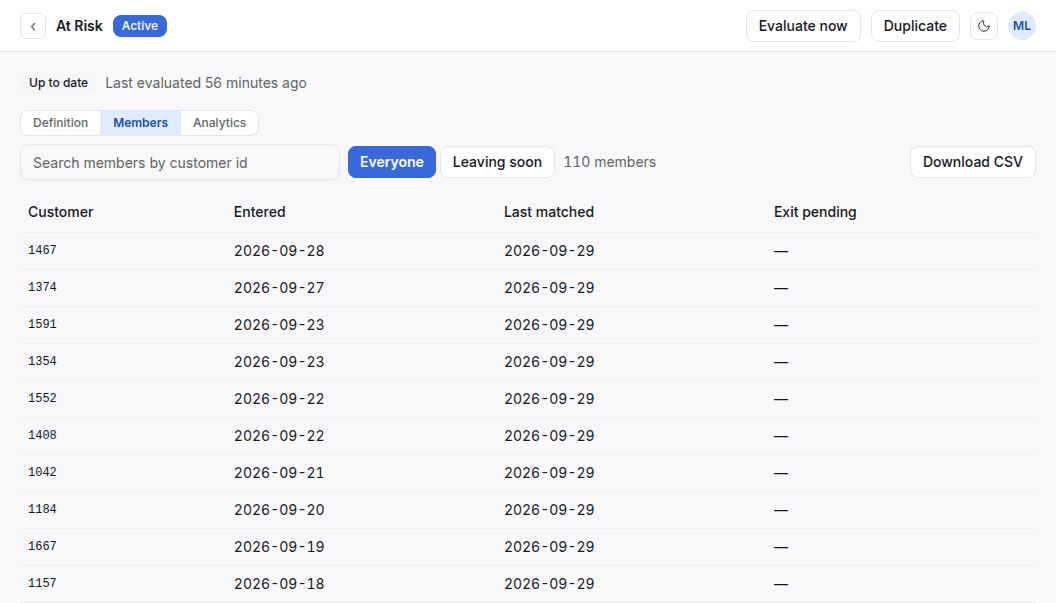
The Members tab of a segment lists the customers who are in it now. Use it to check that a segment holds who you expect, and to take the list into another tool.
Open Audience › Segments, open a segment, and press Members.
Before you start
Members appear once the segment is Active and has been updated at least once. For a segment you have just activated, wait for the next hourly update or press Evaluate now. See Put a segment to work.
Read the list
| Column | What it shows |
|---|---|
| Customer | The customer's BigCommerce customer id. Press it to open the customer's page. |
| Entered | The day the customer joined the segment. |
| Last matched | The last day StoreSpan found that the customer still matches. |
| Exit pending | The day the customer is due to leave, unless they match again first. A dash for a customer who still matches. |
StoreSpan shows the customer id and never a name or an email address. To see who a customer is, look up the id in your BigCommerce control panel.
The list shows 50 members at a time. The number above the list, beside Everyone and Leaving soon, is the full count.
Find a customer
| To | Do this |
|---|---|
| Find one customer | Type the start of their customer id in Search members by customer id. |
| See who is about to leave | Press Leaving soon. |
| See everyone again | Press Everyone. |
A customer who stops matching does not leave at once. StoreSpan waits a short time first, so a customer on the edge of a rule does not jump in and out. Leaving soon shows the customers in that waiting time.
Download the list
Download CSV saves the members to a file, with what you searched and filtered applied. The file has four columns: the customer id, when the customer entered, when they last matched, and when they will leave.
The file holds up to 100,000 members. It contains no names and no email addresses.
See who joined and who left
Recent changes lists each customer who joined or left, newest first, with the day. Press Show older for earlier changes.
StoreSpan keeps this history for 180 days. See Data and privacy.
A customer's page
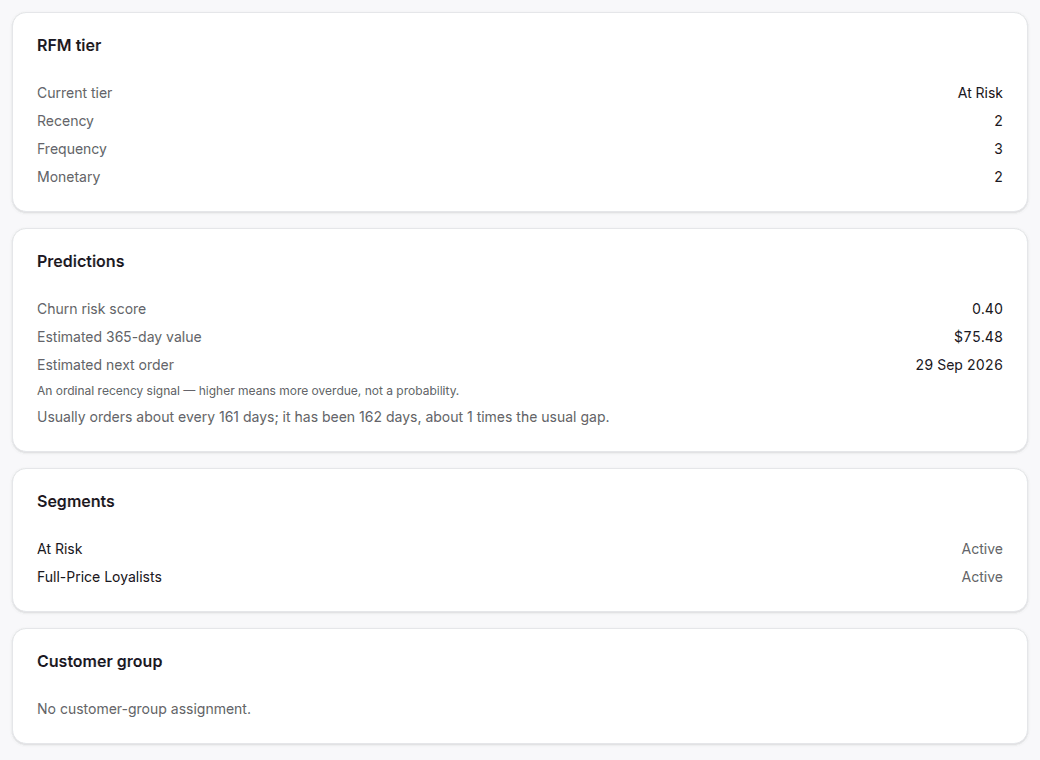
Press a customer id to open that customer's page. It shows what StoreSpan has worked out about the customer:
| Card | What it shows |
|---|---|
| RFM tier | The customer's tier, and the three scores behind it: recency, frequency and monetary. |
| Predictions | The churn risk score, the estimated value over a year and the estimated next order. |
| Segments | The segments the customer is in. Press one to open it. |
| Customer group | The group StoreSpan wants the customer in, the group they are in, and whether the two match yet. No customer-group assignment. when no segment of the customer has a group. |
For what the tiers mean, see What the tiers mean. For the predictions, see Predicted scores.
If the list is empty
| Message | What to do |
|---|---|
| No members yet. Members appear here after the segment is activated and the next scheduled evaluation runs. | Activate the segment, then wait for the next update or press Evaluate now. |
| No members match your search. | Clear the search, or check the customer id. |
Put a segment to work
Activate a segment, keep a BigCommerce customer group in step with it, decide which segment wins when two overlap, and know how often members are updated.
Segment results
Read how big a segment is, how much its customers are worth, how it grows and shrinks, and what its customers buy.