Variant images
Let StoreSpan set the image of each colour variant from your labels, and decide what happens when a colour has no image left.
On BigCommerce each variant of a product, such as the Ember version of a jacket, can have its own image. StoreSpan can set that image for you from your labels, so a shopper who picks Ember sees the Ember jacket.
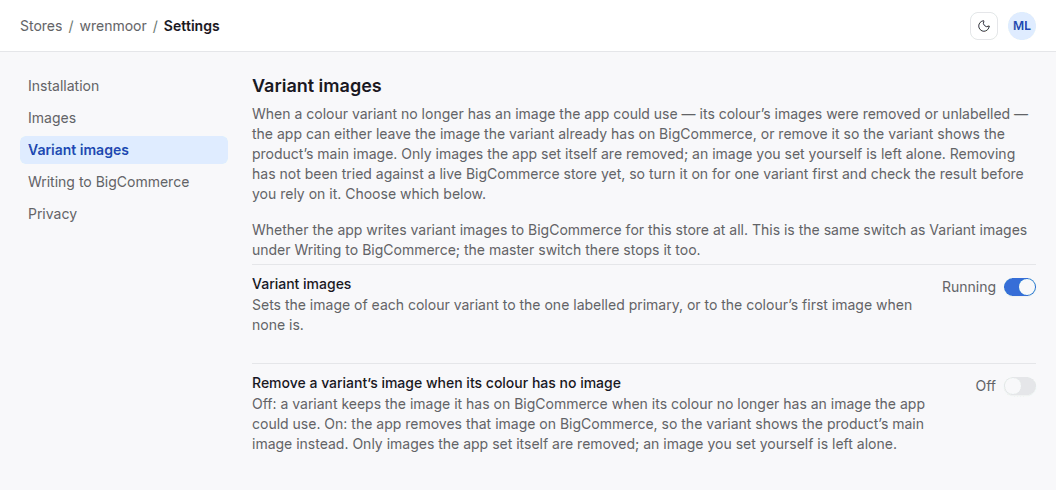
Open Store › Settings › Variant images.
Before you start
Only the store owner can change these switches. Other staff see them greyed out, with the note Only the store owner can change this.
Which image a variant gets
For each colour variant StoreSpan uses:
- the image of that colour labelled Primary, or
- if none is labelled Primary, the first image of that colour.
So to choose the image a colour shows, give that image the colour label and the Primary label. See Labels on one image.
The other way round: a variant's own image gives the colour a picture
This reads the other way too. When a variant already shows an image on BigCommerce — one you set there, or one BigCommerce chose — StoreSpan gives that image the variant's colour as a label, so a colour gets its picture even when you have labelled nothing. Once StoreSpan itself sets a variant's image (with Variant images on), StoreSpan's choice is the one it reads back, so a colour's picture never chases its own tail.
A colour label StoreSpan guessed this way from a variant's picture is kept — it still gives the colour its picture in search results — but it no longer decides which image a variant or a thumbnail is set to on BigCommerce; only a label you placed yourself does that. So a colour with only guessed labels is left alone on BigCommerce: StoreSpan neither sets nor clears its variants' pictures there.
A variant image that is not one of the product's images, such as one uploaded straight onto the variant, cannot be labelled. Search still shows it as the colour's picture when no image is labelled with that colour. See Colours in search results.
The two switches
| Switch | What it decides |
|---|---|
| Variant images | Whether StoreSpan sets variant images on BigCommerce at all. |
| Remove a variant’s image when its colour has no image | What happens to a variant when its colour no longer has any image to use. |
Changing either switch asks you to confirm first.
Variant images is the same switch as the one with that name under Writing to BigCommerce. Changing it in one place changes it in the other.
When a colour has no image left
A colour can lose its images, for example when you delete them or take the colour label off them. The second switch decides what the variant shows then.
| Switch is | What happens |
|---|---|
| Off | The variant keeps the image it already has on BigCommerce. |
| On | StoreSpan removes the variant's image on BigCommerce, so the variant shows the product's main image. |
This switch works on your whole store and cannot be undone
Turning the switch on can remove variant images across your whole store. Turning it off again does not put a removed image back. StoreSpan has not yet tried removal against a live BigCommerce store.
StoreSpan removes an image only from a variant it set an image on before. A variant whose image you have always set by hand is left alone.
StoreSpan cannot tell whether you changed a variant's image by hand after StoreSpan set it. If you did, turning this switch on can remove the image you chose.
Before you turn the switch on:
- Check that no variant in your store shows an image you set by hand and want to keep.
- Turn the switch on.
- Over the next day, watch a product whose colour has lost its images. The change can arrive with the daily update, not at once.
- Keep the switch on only if every variant still shows what you expect.
Image settings
Add, rename, order and delete your image labels, understand where colour labels come from, and choose which labels the AI leaves alone.
Writing to BigCommerce
Stop and start each kind of change StoreSpan makes to your BigCommerce store, or stop all of them at once with the master switch.