Writing to BigCommerce
Stop and start each kind of change StoreSpan makes to your BigCommerce store, or stop all of them at once with the master switch.
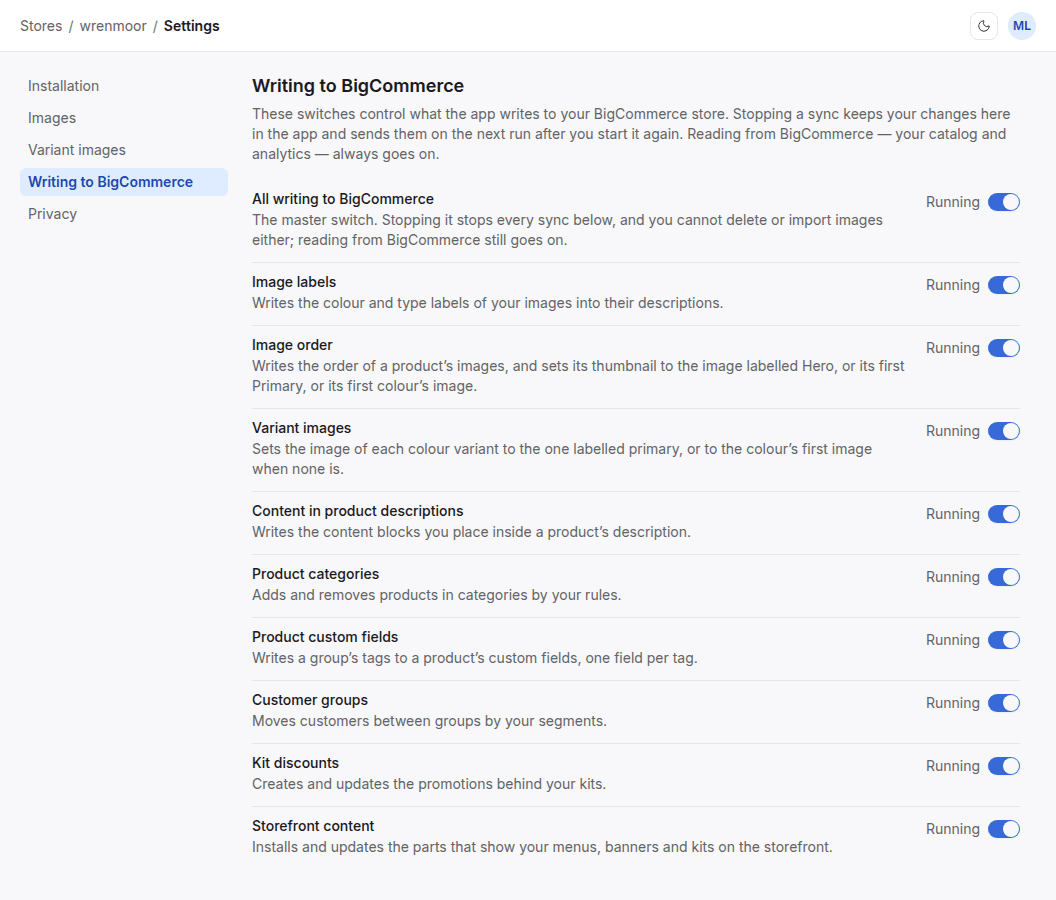
StoreSpan changes your BigCommerce store in the background: it updates image descriptions, sets thumbnails, creates the discounts behind your kits, and more. The Writing to BigCommerce page has one switch for each kind of change, and a master switch that stops them all.
Use it when you want to work in StoreSpan without anything reaching your store yet, or when something looks wrong on the storefront and you want to pause while you check.
Open Store › Settings › Writing to BigCommerce.
Before you start
Only the store owner can change these switches. Other staff see them greyed out, with the note Only the store owner can change this.
What stopping does
- Your work is kept. Changes you make while a switch is stopped stay in StoreSpan. They are sent when you start the switch again.
- Reading goes on. StoreSpan keeps reading your catalogue and your analytics from BigCommerce, so the dashboard stays up to date.
- Nothing is undone. Stopping a switch does not take back changes StoreSpan already made to your store.
Stop or start one kind of change
- Find the row and press its switch.
- Read the dialog, then press Stop or Start again.
Each row shows Running or Stopped.
| Switch | What StoreSpan changes on BigCommerce |
|---|---|
| Image labels | The descriptions of your images, so they carry your colour and type labels. |
| Image order | The order of a product's images, and its thumbnail. |
| Variant images | The image of each colour variant. |
| Content in product descriptions | The blocks you place inside a product's description. |
| Product categories | Which categories your products are in, by your rules. |
| Product custom fields | A product's custom fields, one field for each tag of a group. |
| Customer groups | Which customer group each customer is in, by your segments. |
| Kit discounts | The promotions and one-time codes behind your kits. |
| Storefront content | The parts that show your menus, banners and kits on the storefront. |
Stop everything at once
All writing to BigCommerce at the top is the master switch.
What the master switch stops
Stopping it stops every switch below it. While it is stopped you also cannot import or delete images: those actions are refused with the message Writing to BigCommerce is stopped for this store. Start it again in Settings.
While the master switch is stopped, each row below it says Stopped by the master switch above. Starting the master switch again puts every row back to its own setting. A row that was stopped before stays stopped.
Find out more about each switch
| Switch | Read |
|---|---|
| Image labels | Sending labels to BigCommerce |
| Image order | A product's images |
| Variant images | Variant images |
| Customer groups | Putting a segment to work |
| Kit discounts | Kit discounts |
| Storefront content | How injectables reach your store |